Tuesday, August 18, 2020

Clever Rollout

Everyone,

As some of you may be aware we have stared using a product called Clever to provide Single Sign On and Rosters for some of our most used Educational applications.

The portal is used by both students and staff to access applications. Clever syncs multiple times throughout the day with PowerSchool, and our applications sync nightly to keep student rosters up-to-date in applications.
We have changed the portal page on the Chromebooks to launch Clever now instead of the student intranet.

When you login to the Clever portal you use the same credentials you use to login to your District email account. Once you login to the Clever portal you only need to click on an application tile to automatically login and access the application. A couple applications may require you to to login once and then Clever will remember the password for future use.
If you don't have an application tile on your portal, you don't have access to the application.

The Clever portal can be found here: https://clever.com/in/caledonia

These applications are set up, or are in process with Clever.

  • Acadience Learning (DIBLES)
  • Amplify
  • Discovery Education
  • Follett Destiny
  • iReady
  • IXL
  • Google Classroom
  • Gmail
  • Naviance
  • TCI
  • NoRedInk
  • NWEA
  • Savvas (My Prespective)
Please log into the Clever portal as soon as possible and explore this great new tool.


Friday, August 7, 2020

Power Teacher Pro Updates

PowerSchool update 20.4 has brought several new features and enhancements to PowerTeacher and the PowerTeacher Pro (PTP) grade book. This post will review some of the significant new features and how to access information on all of the new features and enhancements.

For those of you that are new to PowerTeacher or have not used it much I want to clarify the difference between PowerTeacher and PowerTeacher Pro.

PowerTeacher is the landing page for all teachers in PowerSchool. It is where you take attendance, setup seating charts, see your schedule, run reports, and many other features. It is not a grade book.

PowerTeacher Pro (PTP) is a relatively new grade book for PowerSchool. It has been around for about 5 years. The old PowerSchool grade book is being phased out. PTP is where you setup and grade assignments, group students, run progress and other reports, and access other features. PTP is where the new features reviewed below are accessed.

Student Contacts

Student contacts are now available in PTP. Contacts have been available in PowerTeacher for awhile through the use of a customized plug-in. PowerSchool has now added student contacts to the student demographics page in PTP. After selecting Demographics, contact information is below the student information. 


We will leave the customized contacts enabled because in some cases they are more convenient to use. However, the new Student Contacts feature in PTP adds some contact fields when printing Student roster reports.
Email

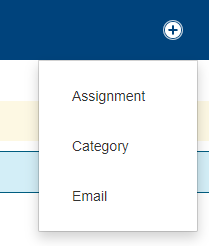
Another new feature in PTP is Email. You can now send emails to students, parents, or both using PTP. You access the Email feature by clicking on the Create (small plus symbol in the upper right) and picking Email from the list.

Use the Select Classes drop down to select one or more classes. Use the recipient checkbox on the left to select students and on the right to select student contacts. Use the Filter section to narrow down your choices. Click on the Message tab to enter the subject and text of the email. Use the CC Me checkbox to receive a copy of the email. Please note, the email feature can only be used to send simple text only email messages. If you want to send a newsletter, form, link, or other non text item use School Messenger.

Back on the Recipients tab there is a Copy Emails button. This will copy all of the selected recipient email addresses to your clipboard. You can then paste to your Gmail To field. Use this sparingly as it will be charged against our daily Gmail usage quota. 
Getting Help
There are additional features and enhancements to PTP and they are continuously adding more with major updates. Click on the question mark symbol in the upper right to access help features. Selecting Getting Started will display the Welcome information that was displayed the first time you opened the new version. There are some basic labels of features, videos, and additional information. Selecting What's New? will show a list of the key enhancements along with a What's New video. Selecting Help will take you to the live PowerTeacher Pro help site. This site provides detailed information on most aspects of PTP.


Tuesday, July 21, 2020

PowerSchool Update

The latest PowerSchool update makes some significant changes to the Start Page experience. The "New Experience" is currently disabled but we are planning on enabling next week. It may feel uncomfortable at first but you should get used to it quickly. There are several improvements with the search capabilities. 

To learn more about the new features select Help and then System Help in the upper right corner of your screen. Select the New Experience menu option on the left.

Wednesday, June 17, 2020

Windows Updates

Patch Tuesday! This is the label attributed to the monthly Windows updates. It occurs on the second Tuesday of every month and contains security updates as well as other operating system fixes and updates. The updates run behind the scenes but often require one or more restarts to complete the installation. The computer will generally slow down and sometimes features will not work until the updates are complete. Eventually you will be forced to restart your computer and the timing will likely be inopportune. 

Best practice is to restart your computer weekly at a minimum and to complete lingering Windows updates immediately after Patch Tuesday. 

First you need to understand what is and is not restarting your computer. Closing the lid usually does not shutdown your computer. Even the Power button might not shut down your computer or trigger pending updates.

Use either of the following methods to ensure your computer is restarted and updates are installed:

Note: Make sure to close all applications prior to running updates. Running applications can cause the update process to fail.

If you are logged on right click on the Windows icon in the lower left corner of your screen to see the restart and update options. 
Select Update and shut down or Update and restart to start the update process. Note: if no updates are pending you will not see Update options. 


If you are not logged on go to the logon screen and the power button should be displayed in the lower right corner of your screen. Right-click on the power button to see the restart and update options menu. You will have the same options as listed above.


Note: After the updates are completed and the computer restarts it may take a couple minutes for the update options to be removed from the menu. If the update options remain after a few minutes complete the process again; sometimes updates take more than one restart to complete the updates.

Troubleshooting
  • Be patient, sometimes the updates can take up to 20 minutes or longer to complete. 
  • If the update looks stuck, the update completions percentage has not changed in 30 minutes press and hold the power button until the computer shuts down (usually 10 seconds or less). Power on the computer, the updates may automatically continue, the updates may be complete, or you may need to run the process again.
  • If you continue to have problems contact technical support.

If you shutdown or restart your computer weekly and make sure your Windows updates are complete at a time of your choosing you will save yourself from it happening when you need your computer functioning optimally.  

Thursday, April 23, 2020

Google Meet on Macbook

There seems to be a problem with Google Meet and hardware acceleration on Macbook computers. The problem might also manifest with our video applications.

If you use a Macbook and are experiencing video problems, especially with Google Meet, try the following steps:

  • Open Google Chrome
  • Click the three dots in the top right corner, then select Settings
  • In the center you will see a box that says Search Settings, in that box type "Hardware Acceleration"
  • Uncheck "Use hardware acceleration when available"
  • Select Relaunch

This will relaunch your Google Chrome browser.

Test Google Meet to see if performance issue are improved.

Friday, April 3, 2020

Technology Support

I hope everyone is healthy and taking care of themselves and their family during these challenging times.

With the new challenges of distance learning I wanted to make sure everyone has the technology support you need. If you are having problems with your computer or just have questions in general, we are here to help. There are multiple methods to request assistance:
Our current hours of operation are Monday - Thursday from 9:00 AM - 3:30 PM. However, we are monitoring help desk tickets outside our normal operating hours.

If you are having problems with your computer a technician will be in touch to schedule a remote session. If needed we can make an appointment for you to bring your computer in for service or replacement.

We are here to support you, if you need help please don't hesitate to ask.

Thank you and stay safe,

Monday, March 23, 2020

HELP DESK ACCESS

In light of everything that is going on the Tech Help Desk has made itself available from the outside.
If you are in need of assistance, you can call 616-528-6000.  If you happen to be onsite, the number is still 7990 internally.

Google Classroom Tips!

Continuing with our Google tips, here are some tips for Google Classroom: 1. Add a file to an assignment  Adding a Google doc/sheet/slide fi...